
-2.png)
If you’ve ever wished your apps could talk to each other and save you from repeating the same tasks, you’re in the right place. Meet n8n, an open-source workflow automation tool similar to Zapier or Make, but with far more flexibility, freedom, and control. Unlike Zapier or Make, n8n gives developers the ability to build advanced logic, run custom JavaScript, and host their data on their own servers, making it a perfect fit for anyone who needs more than simple automations.
In this guide, we’ll show you how to get n8n up and running in under 10 minutes, build your first workflow, test it out, and even share it with others. If you want the fastest path, n8n Cloud is the guaranteed way to hit that 10-minute mark. Prefer maximum flexibility or planning for production? We’ll also cover the best self-hosted setups using Docker or Node.js.
Quick heads-up: This guide assumes you have some developer background. We won’t be covering how to install Docker or Node.js, so make sure those are set up before you dive in.
Step 1: Getting Started
The first step is to get n8n running. There are three simple ways to do it:
Docker (fastest way)
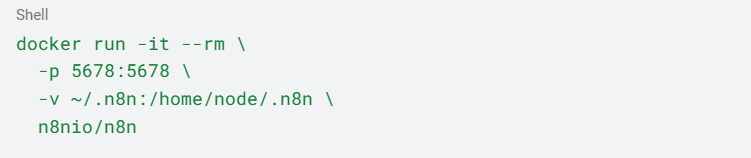
-
Then open http://localhost:5678 in your browser.
Local install with Node.js
Before installing, make sure your system is running Node.js 16 or higher. Older versions may cause installation or runtime errors.
Run the command below to install the latest version of n8n globally:
 Then start n8n:
 Then open http://localhost:5678.
n8n Cloud (no install required)
Sign up at n8n.cloud and you’ll get instant access with zero setup.
Pro Tips: Whether you’re a developer or a non-technical user, n8n is accessible through multiple setup options.
Step 2: Building Your First Workflow
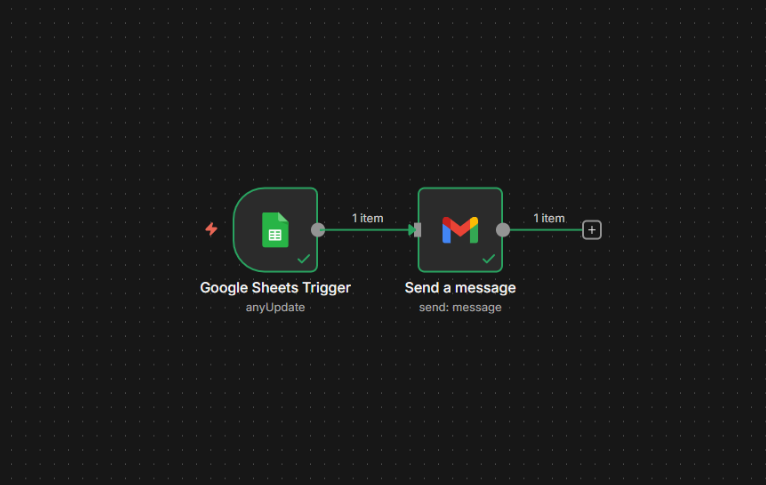
Now that n8n is up and running, let’s build a simple workflow:
Goal: Get an email notification whenever a Google Sheet is updated.
Note: You will need to set up credentials for Google Sheets and Gmail. For a true 10-minute test run, try using the 'Cron' node (schedule) and the 'Hacker News' node
1. Create a new workflow.
2. Add a Google Sheets node
→ set it to “Watch for updates.”
3. Add a Gmail or SMTP node
→ configure it to send yourself an email.
4.Drag a line to connect the two nodes.
Pro Tips: n8n’s drag-and-drop editor makes automation easy, with support for over 1,000+ app integrations. https://n8n.io/workflows/
Step 3: Testing and Debugging
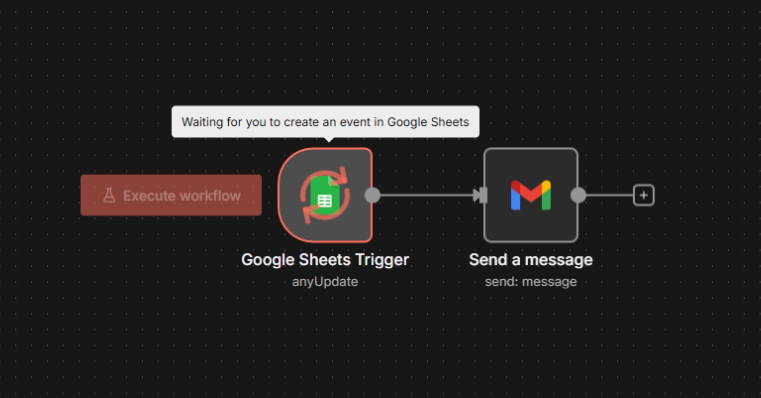
Time to test!
1. Click Execute Workflow.
2. Make a change in your connected Google Sheet.
3. Check your inbox — you should see an email notification.
Pro Tips: n8n provides real-time execution logs, making it simple to confirm your automation is working or troubleshoot errors.
Step 4: Exporting and Collaboration
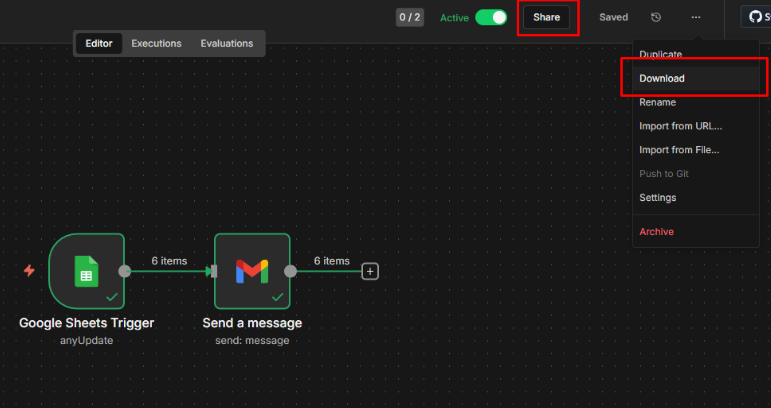
Once your workflow is working, don’t forget to save it. You can also:
-
Export the workflow as a JSON file.
-
Share it with teammates, who can import and reuse it.
-
Build on top of it for more advanced automations.
Pro Tips: Workflows are portable and reusable, making collaboration and scaling easier.
Conclusion
And that’s it. You’ve set up n8n, built your first workflow, tested it, and learned how to share it in under 10 minutes. From here, you can explore more advanced automations, connect additional apps, or build complete end-to-end processes that support your daily operations.
-
Explore 1,000+ n8n integrations to connect your favorite apps.
-
Automate tasks like SEO monitoring, social media posting, or lead management.
-
Scale your setup by deploying n8n in production using Docker or n8n.cloud
Tell us which task you’re planning to automate first. We’d be glad to help you get started.